QR Code Scanner Not Working? 7 Fixes You Can Try Right Now
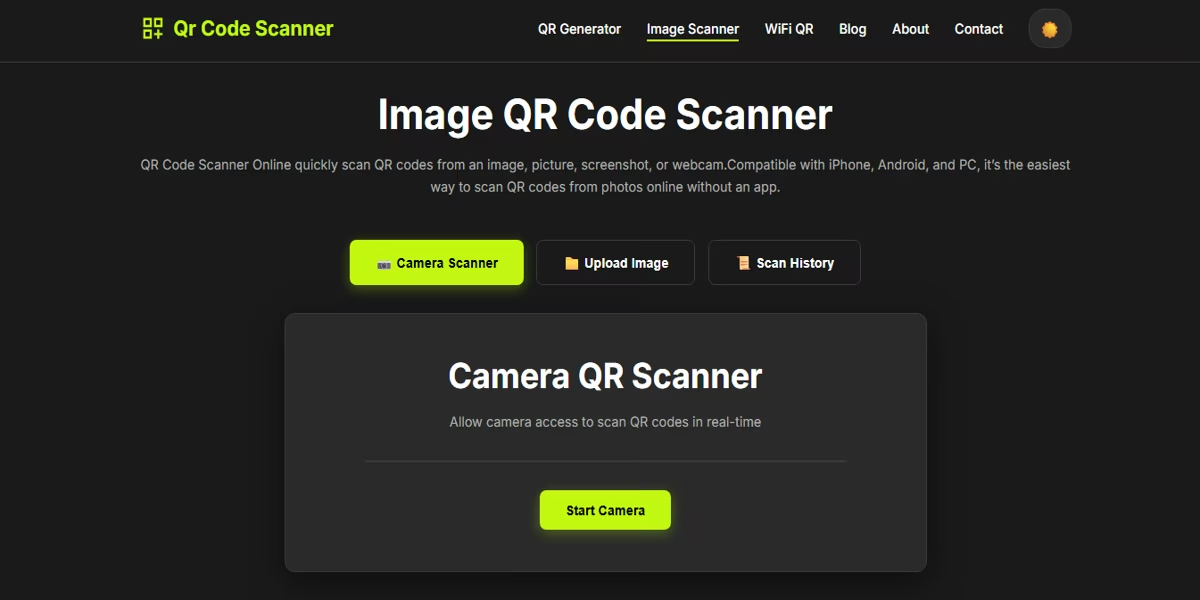
A QR code is a picture, not a magic button. If the camera cannot see the pattern clearly—or the app never gets a chance to look—the scan fails even when the code is fine. Most “broken scanner” moments come from permission, light, focus, or the wrong tool, not from a mysterious software crash.
Work through the seven checks below in order. You can usually get a result in a couple of minutes without installing anything new.
1. Give the camera (or photos) permission
Browsers and phone apps cannot look through the lens until you allow it. If you tapped “Block” once, the scanner sits on a black screen and looks dead. Open site settings (or the app’s privacy screen), turn camera access on, then reload the page and try again.
If you would rather not use the live camera, that is fine. Upload a photo or screenshot instead. A still picture often scans more reliably than a shaky live view.
2. Fix the lighting before you blame the code
QR codes need contrast: dark modules on a light background, or the reverse. Dim rooms, yellow bulbs, and window glare all flatten that contrast. Move so the code is evenly lit. Tilt the phone a little if you see a bright stripe across the square.
Night mode and heavy filters can also confuse a decoder. If you already took a picture, try a second shot with flash off and the code filling more of the frame.
3. Stop the blur
A code that looks “almost sharp” to your eye can still be mush to a decoder. Hold the phone still for a second, tap the screen to focus, and step closer until the whole QR fills the middle of the view. If you are scanning from a screen, raise the brightness and disable auto-lock so the image does not dim mid-scan.
Printed codes that were photocopied too small are a common trap. If the square is under about 2 cm on paper, ask for a larger print or scan a digital copy.
4. Update or switch the browser
In-browser scanners use the camera API in Chrome, Safari, Edge, Firefox, and similar. Very old versions, in-app browsers inside social apps, and strict corporate browsers sometimes never start the camera. Open the same link in a current full browser, not inside a chat preview.
Clearing a stuck permission and closing extra tabs that already use the camera also helps. Only one tab can own the webcam at a time.
5. Inspect the code itself
Look at the three large squares in the corners. If one is torn, stickered over, or washed out, many readers give up. Coffee rings, wrinkles, and low-ink printers do the same. Photograph the flattest, cleanest part of the code you can, or request a fresh file from whoever shared it.
Codes placed behind glass, on curved bottles, or on busy patterned wallpaper are harder than they look. Flatten the surface or crop a screenshot so only the QR remains.
6. Use a reader that matches the job
The built-in camera app on some phones only recognizes certain QR types, or it waits for a banner you can miss. A dedicated image scanner is better when you already have a screenshot, a WhatsApp photo, or a PDF page. Product barcodes (the striped kind on groceries) need a barcode scanner, not a QR-only tool.
If one app fails, do not assume the code is invalid. Try a second reader on the same image before you reprint anything.
7. Remember: decoding is local, opening a site is not
People often say “the scanner needs internet.” Reading the squares happens on your device. You only need a connection after a successful scan if the payload is a web address, a map, or similar. If the result is plain text, a phone number, or WiFi details, you can still see it offline.
If the scan works but the page will not load, that is a website or network problem, not a QR problem. Copy the link and try it later on a stable connection.
FAQ
Why does my phone camera see the QR code but never open a link?
The camera may be in photo mode, the code may be too small or shiny, or the app may lack permission. Try a screenshot or photo upload in a browser scanner so the decoder can work on a still image.
Do I need internet for a QR scanner to work?
Decoding the pattern does not require a network. You only need internet after the scan if the code holds a website, map, or other online destination.
Can a damaged QR code still be read?
Often yes, if the three corner squares are intact and contrast is strong. If the print is torn, faded, or covered, photograph it in better light or ask for a new copy.
If the live camera keeps fighting you, skip it. Upload the photo or screenshot to the free image QR code scanner and read the result in your browser. Nothing is sent to a server for decoding—the work stays on your device.