How to Create a WiFi QR Code (Step-by-Step Guide)
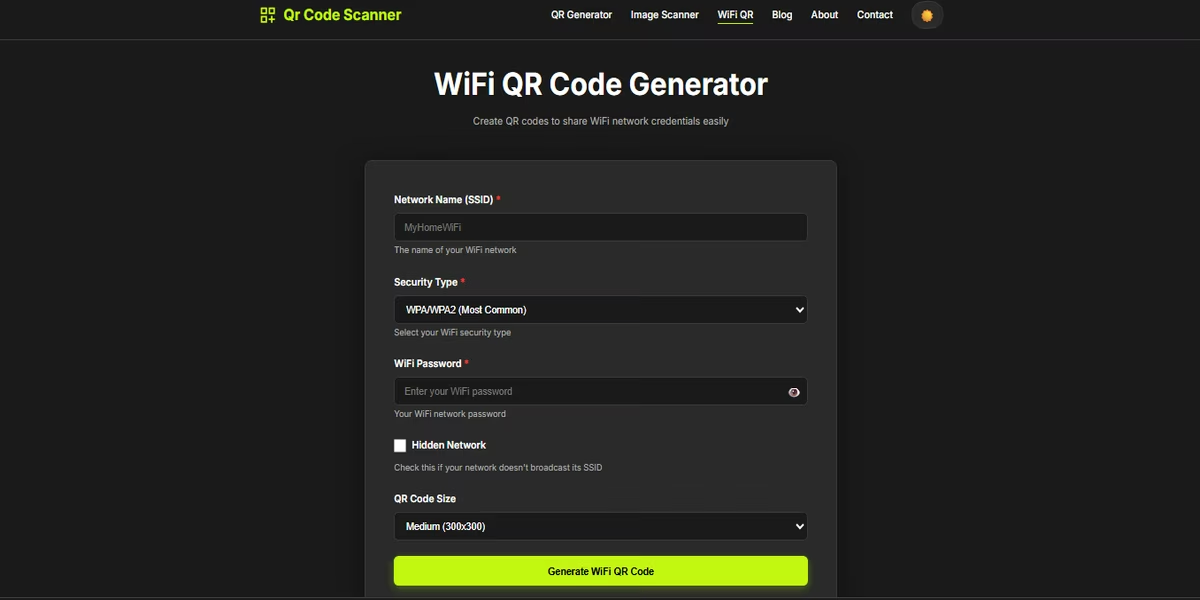
Spelling a 16-character password across a noisy table is a bad welcome. A WiFi QR code turns that ritual into a scan: the phone reads the network name, security type, and password, then offers to join. Cafes, offices, and hosts use it because it is faster than a sticky note and easier than a verbal dictation.
You do not need design software. You need the same details you already typed into your router—plus a generator that builds a standard WiFi payload. Here is the whole path, start to print.
What you should gather first
- Network name (SSID) — the exact name phones see in the WiFi list, including capitals and spaces.
- Password — copied from the router sticker or admin page, not from memory if you are unsure.
- Encryption type — usually WPA or WPA2 on home and small-business routers. WEP is rare and weak. Some guest portals are open (no password).
- Hidden network? — only tick this if the name does not appear in the public list.
If you run a shop, create a guest network so visitors never land on printers and file shares. Put the QR on that guest SSID only.
Step-by-step: make the code online
- Open a WiFi QR tool in your browser. A dedicated form is simpler than a generic URL generator because it already knows the WiFi field layout.
- Type the SSID. Match the router exactly. “Cafe Guest” and “Cafe-Guest” are different networks.
- Choose encryption. Pick WPA/WPA2 for almost every modern password-protected network. Choose WEP only if the router still uses it. Choose none/open if there is truly no password.
- Enter the password. Paste it. Do not add a space at the end. If the network is open, leave the password blank.
- Mark hidden only if needed. A hidden network still has a name; phones just do not advertise it. Wrong hidden flags confuse the join prompt.
- Generate the QR. You should see a square you can scan with your own phone before you print a hundred copies.
- Test on a device that is not already connected. Turn WiFi off and on, or use a second phone. Confirm it joins without typing.
- Download a PNG and print it at a decent size—about 4 cm square or larger on paper. Tiny codes on glossy menus fail under restaurant lighting.
Need a plain website or text code for a poster as well? You can make that separately with the QR code generator. Keep WiFi and marketing codes visually distinct so guests scan the right square.
Where to use WiFi QR codes
- Cafes and small restaurants — table tents, the counter, or the back of a paper receipt. One scan beats shouting the password over the espresso machine.
- Airbnb and guest rooms — a card in the welcome book, on the fridge, or beside the bed. Update it the day you rotate the password.
- Offices — reception, meeting rooms, and visitor badges. Guest WiFi only.
- Home — a framed card near the door for family who still ask every visit. Useful for smart TVs and consoles that accept a scan from the phone.
Laminate cards that live near sinks. Reprint after any password change; an old QR is a silent lockout.
FAQ
Is a WiFi QR code safe to leave on the table?
Anyone who can scan it can join that network. Use a guest network when you can, and reprint the code if you change the password.
Will iPhone and Android both join from the same WiFi QR?
Yes on recent iOS and Android cameras. Older phones may need a QR app that understands WiFi payloads. Test one scan on each type of device you care about.
What if my network name has spaces or symbols?
Type the SSID and password exactly as they appear in your router settings, including capitals and spaces. A single wrong character makes the join fail even if the QR looks perfect.
Ready to print a card? Create the code in your browser with the free WiFi QR tool. Enter the network name, password, and security type, generate, then test on your phone before you tape it to the wall.